Auto-forward Gmail to Melo
Set up once, on a computer, and every email from the school lands in Melo by itself. Gmail asks Melo's side for permission first, so the middle of this guide is the Confirm forwarding card you'll see in the app.
You need Gmail on a computer for steps 1 and 3. The Gmail phone app can't add forwarding addresses or create filters. Step 2 happens in Melo on your phone.
Step 1: tell Gmail about your Melo address
- Copy your Melo address. In Melo, open the menu (☰) and tap Forward emails to Melo, then Copy. It ends in
@inbox.mentalloadai.com. - Open Gmail's forwarding settings. In Gmail on the web: gear icon → See all settings → Forwarding and POP/IMAP → Add a forwarding address. Paste your Melo address and click Next.
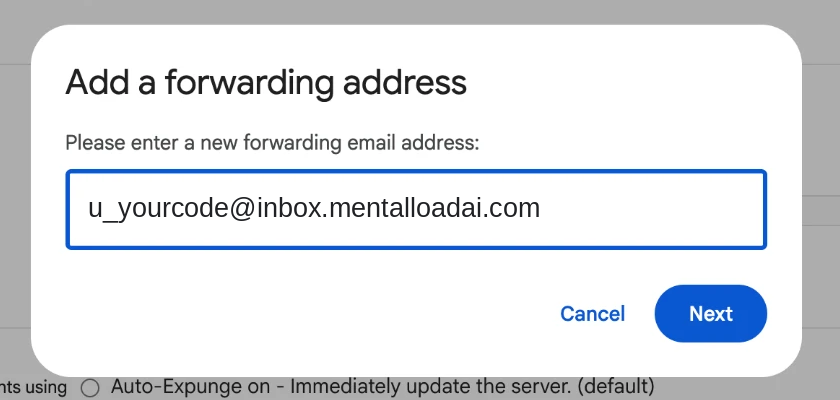
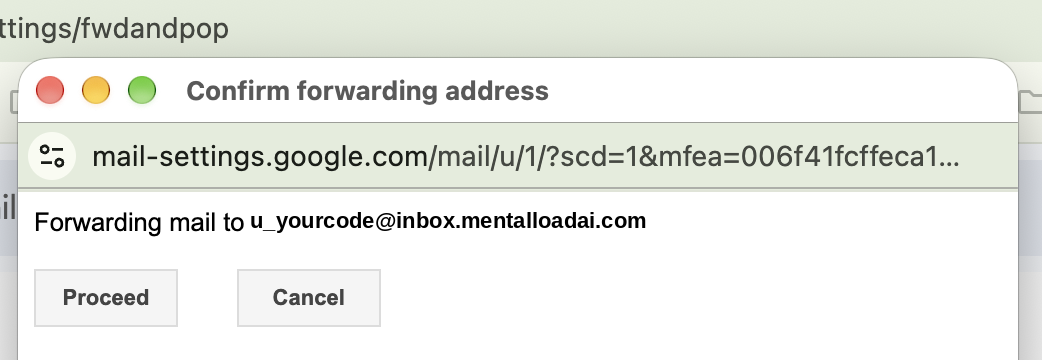
- Click Proceed. A small window repeats the address back to you.
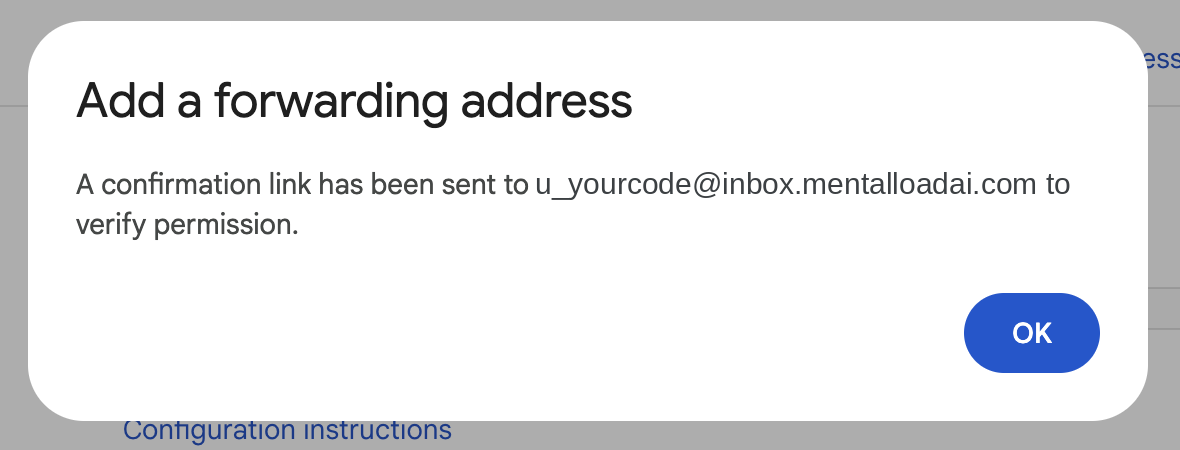
- Click OK. Gmail says a confirmation link has been sent to your Melo address. Nothing is forwarded yet; that's what step 2 is for.
Step 2: confirm it in Melo
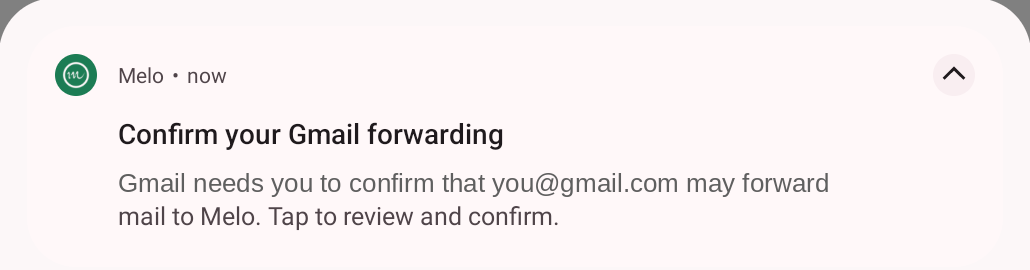
Within a minute Melo sends a notification, Confirm your Gmail forwarding, and a new item labelled Confirm forwarding appears in Brain Dumps. Melo checked that the request really came from Google before showing it.
- Open the notification (or the item in Brain Dumps). The card says which Gmail address asked to forward and that it would forward into your Melo inbox.
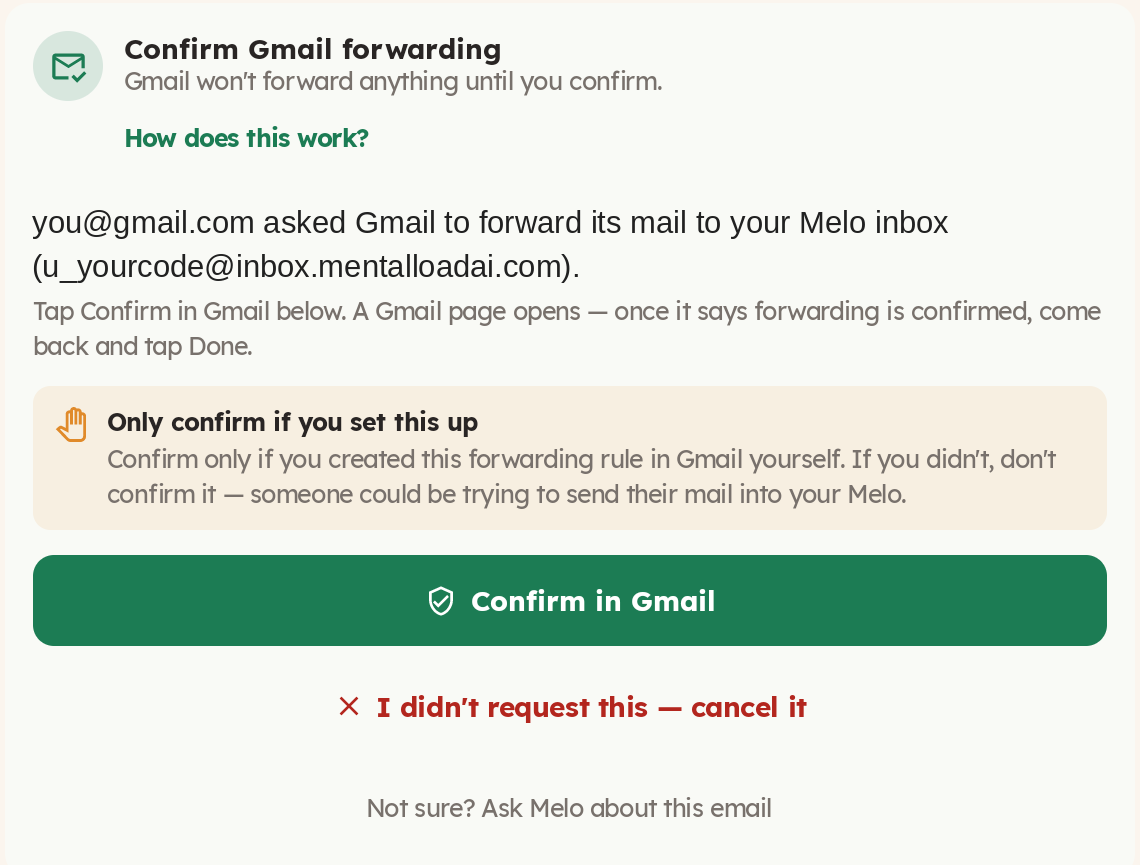
- Check the address is yours. It should be the Gmail account you were just in. If it isn't, don't confirm; see A request you didn't make below.
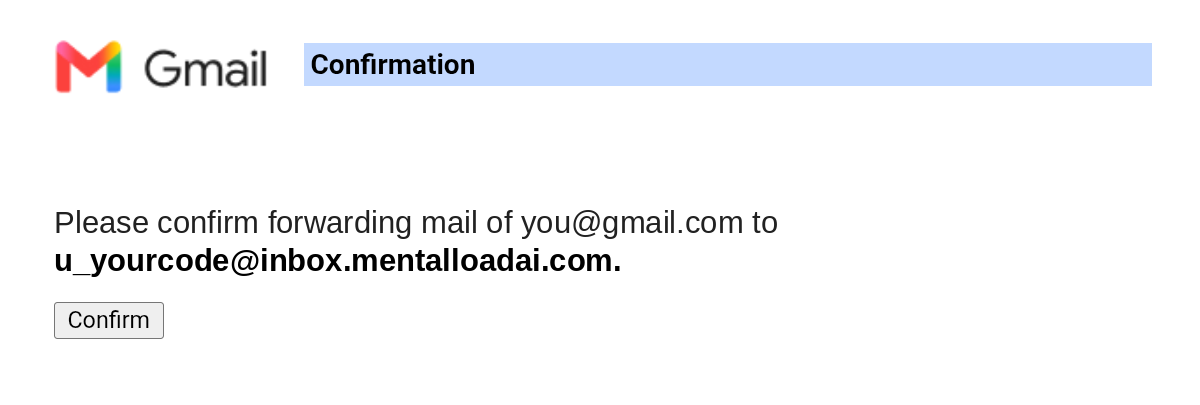
- Tap Confirm in Gmail. Your browser opens Google's own page: Please confirm forwarding mail of … to your Melo address. Tap Confirm there.
- Back in Melo, tap Done. The card changes to You've handled this request and leaves your list.
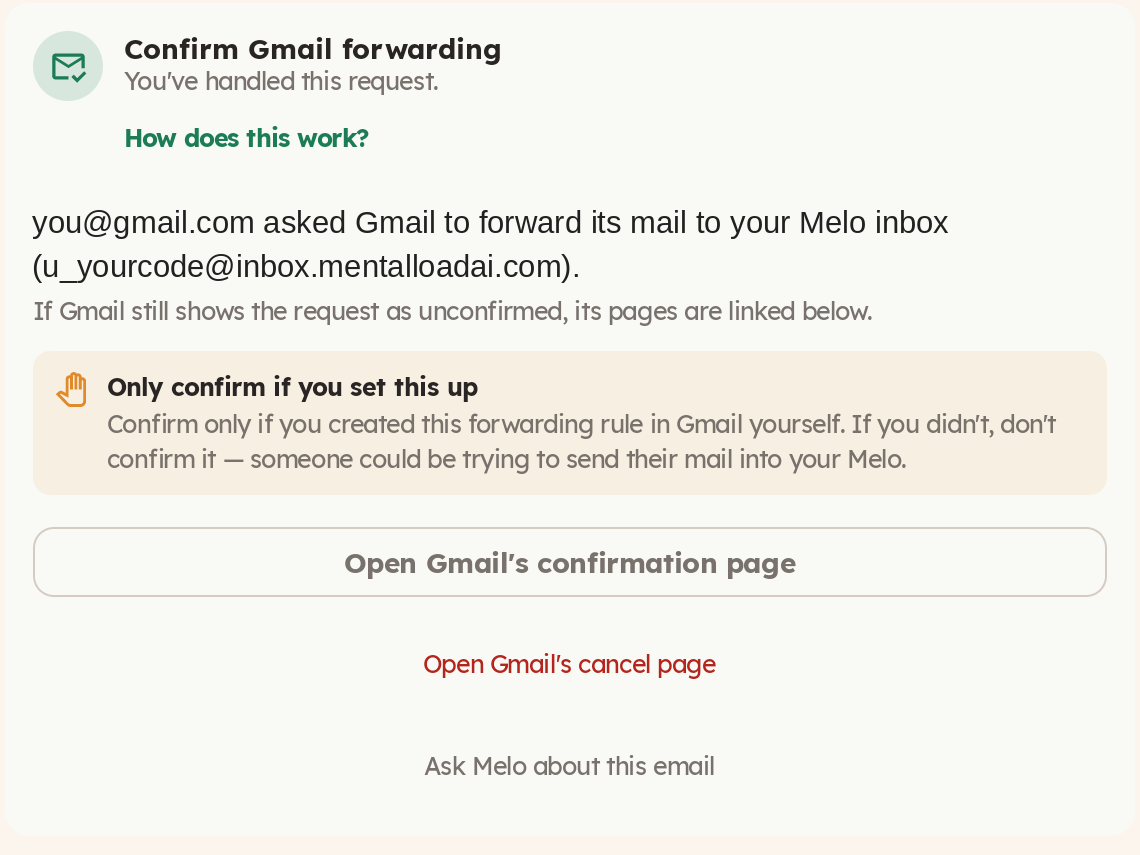
If Gmail sent a confirmation code instead of a link, the card shows the code with a copy button. Paste it into the box Gmail is showing on your computer, then tap Done.
Step 3: create the filter
Back in Gmail on the computer. This is the rule that decides which emails get forwarded.
- Open the filter form. Click the sliders icon at the right end of the Gmail search box. In From, type the sender you want forwarded: the school's address, or just its domain (for example
parentsquare.com) to catch everything it sends. Click Create filter.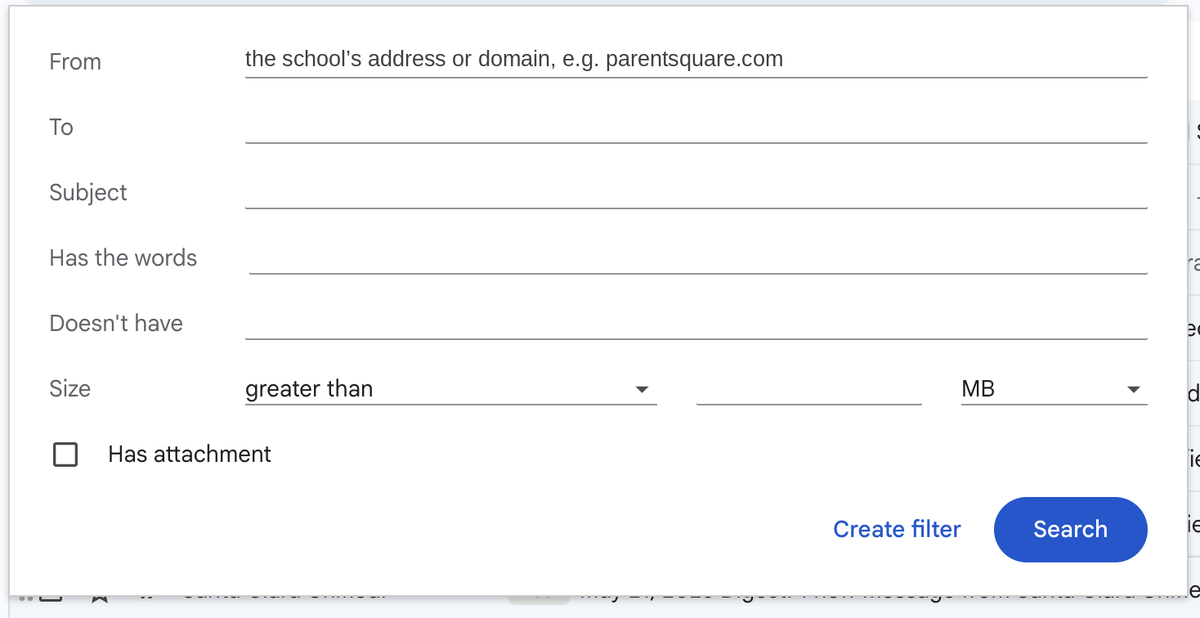
- Tick Forward it to and choose your Melo address in the dropdown. It's there because you confirmed it in step 2.

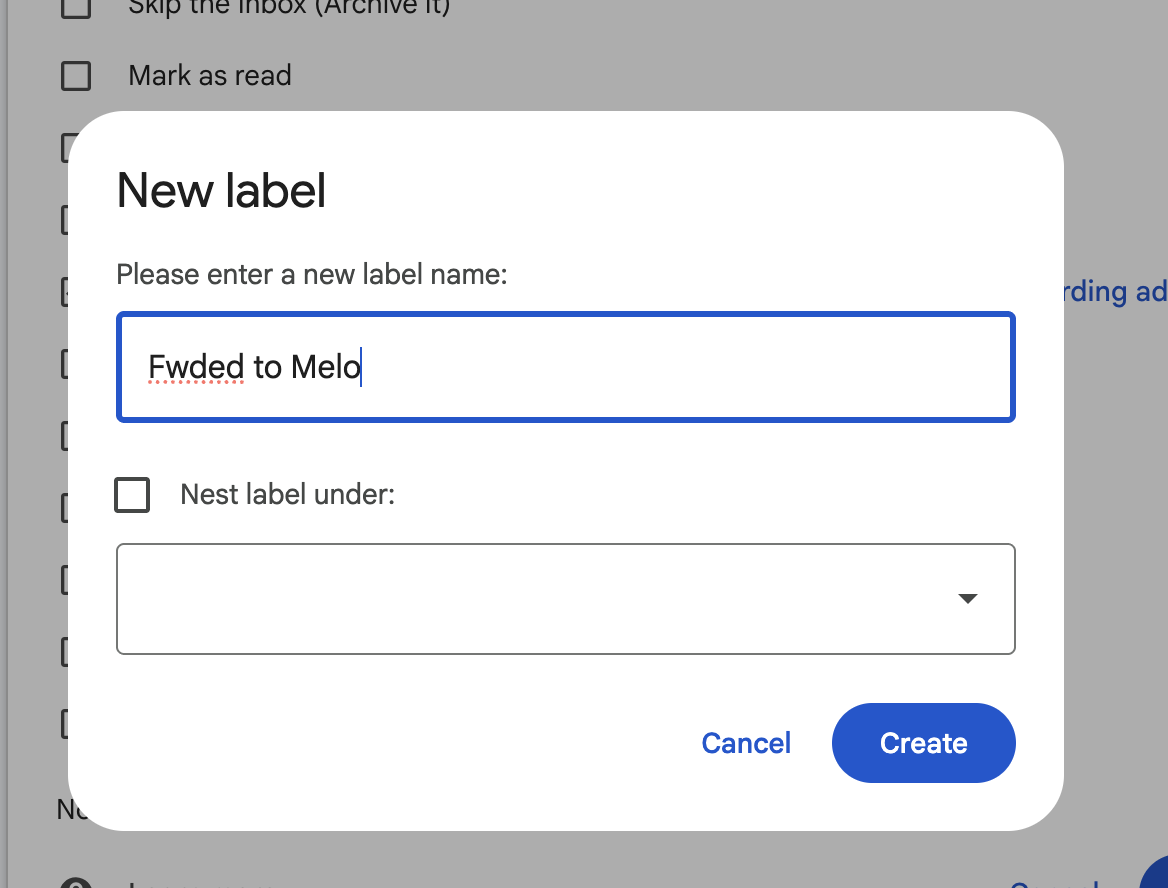
- Optional: label it. Tick Apply the label, choose New label and name it something like Fwded to Melo, so you can see at a glance in Gmail what went to Melo.
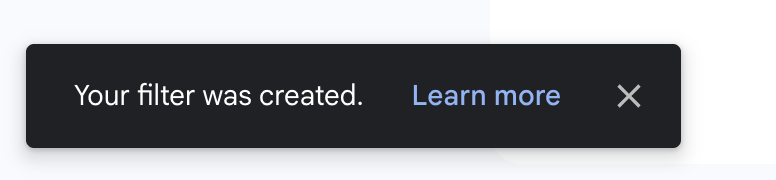
- Click Create filter. Gmail confirms with Your filter was created. Note Gmail's own warning: old mail is not forwarded, only new mail from now on.
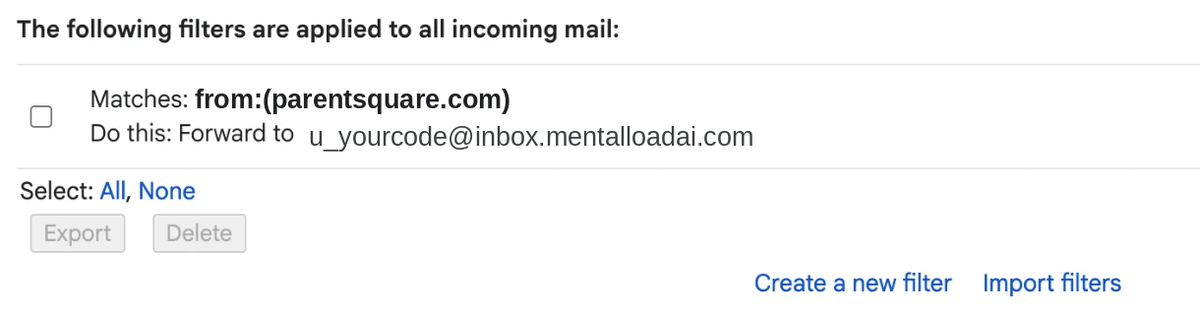
You can see and edit every rule under Settings → Filters and Blocked Addresses. Each one reads Matches: from(…) · Do this: Forward to your Melo address. Add another filter for each school, coach or daycare.
What happens next
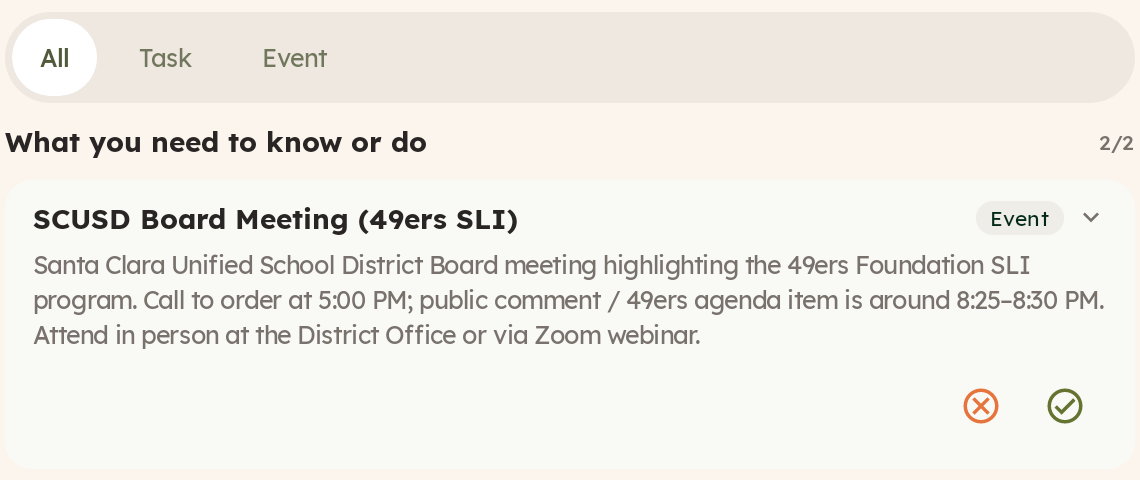
The next email from that sender shows up in Melo as a brain dump with a summary and What you need to know or do: the dates as events, the asks as tasks, each with a tick to accept or a cross to skip. Nothing is added to your family's plans until you accept it.
A request you didn't make
Anyone who knows your Melo address can ask Gmail to forward their mail into it. Melo can verify that the confirmation came from Google, but not who is behind the Gmail account that asked. Approving a stranger's request would let them fill your Brain Dumps with whatever they send.
- If the Gmail address on the card isn't the one on your Melo account, the card says so with a red warning. Read it before you do anything.
- If you didn't set this up, or you're not sure, tap I didn't request this. Gmail's cancel page opens; nothing will ever be forwarded unless someone confirms, so simply not confirming is also safe. Then Remove from my list.
- If you think your Melo address has leaked, open Forward emails to Melo from the menu and tap Rotate address. The old address stops working at once; update your own Gmail rule with the new one.
Still unsure? Tap Not sure? Ask Melo about this email on the card to go through the original message together in chat.
Good to know
- Only Gmail asks for this confirmation. Outlook, iCloud, Yahoo and most work accounts forward without that step; see Forward school emails to Melo.
- One confirmation per Gmail account. Once approved, add as many filters as you like without confirming again.
- If you rotate your Melo address later, Gmail treats it as a new address: repeat step 1, confirm again, and point your filters at the new address.
Get Melo: App Store (iPhone) · Google Play (Android)